 Speed Trainer
Guide
Every screen and every button, and how to use them to get faster. The screenshots show Stompbox, the look Speed Trainer starts with; Midnight and Redline draw the same controls their own way.
Quick start
Your first session
Open the Trainer tab. The first time, start the 7-day free trial there (see Pro and the free trial).
Tap Quick Session. Set Start to a tempo you can play clean, Step up to a few BPM and Step every to a few bars: the line under them shows the tempos you'll hear.
Set the note value you'll play, such as 16ths for a run of sixteenth notes.
Tap Start. After the count-in, play along while the tempo climbs.
Tap Edge the moment you lose it.
The result shows your clean tempo, the fastest step you played all the way through. Tap Again for another go from the start, or Save as Exercise… to keep these settings under a name.
Follow a riff, fill or passage over weeks
In the Trainer tab, tap New Exercise.
Give it a name, set its program and note value, add notes if you like, and tap Save.
Open the exercise and tap Start each time you practise it.
Its record, progress chart and history fill in, session by session.
Practise with a Bluetooth pedal
Switch a page-turner pedal to its keyboard mode and pair it in your iPhone's Settings → Bluetooth.
Start a session. Any key is Edge, so your foot marks where you lose it and your hands stay on the instrument.
The metronome
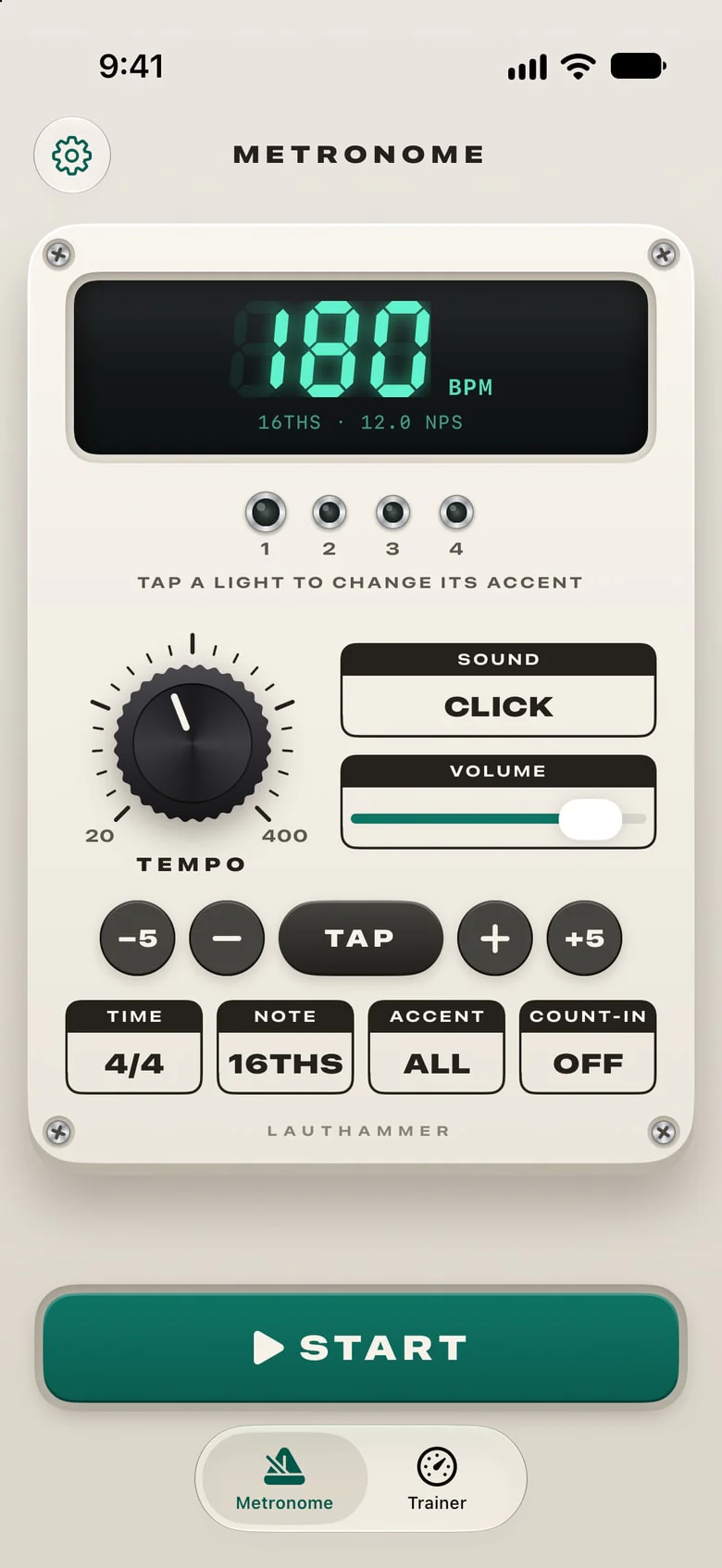
The Metronome tab is a full metronome, free for good and with no ads. Everything you set is kept for next time.
Settings. Pro, the look and the version. The gear is on both tabs.
The display. The tempo in BPM, the note value and how many notes a second that is (nps). When the beat isn't a quarter note, as in 6/8 or 7/8, it adds the tempo in quarter notes, as tabs give it.
Beat lights. One for each beat, lit as you hear it. Tap a light to change its accent: accented (a bigger light), normal, or silent (a dim one).
Tempo knob. Turn it from wherever you touch it, 20 to 400 BPM; the whole range is three quarters of a turn.
Sound. Click, Wood, Beep or Hi-hat.
Volume. How loud the click is.
−5, −, +, +5. Five BPM or one BPM slower or faster.
Tap. Tap along with a song or a drummer, and the tempo follows your last few taps. It counts the moment your finger lands, and starts over after a two-second pause.
Time. 2/4, 3/4, 4/4, 5/4, 6/8, 7/8 or 12/8, or Custom… for 1 to 16 beats over 2, 4, 8 or 16. The BPM counts the beats of the bar, and a new time signature resets the accents.
Note. What plays inside each beat: quarters, 8ths, triplets, 16ths, quintuplets, sextuplets, septuplets, 32nds, a gallop or a reverse gallop. The notes between the beats click more quietly.
Accent. All beats (the first accented), 2 & 4 or 1 only, in one go. It says Custom once you've set the beats one by one.
Count-in. Off, 1 bar or 2 bars to get ready; the lights say Count-in while it plays.
Start. Starts and stops the click. It keeps playing in the background and with the screen locked.
Tabs. The metronome and the trainer.
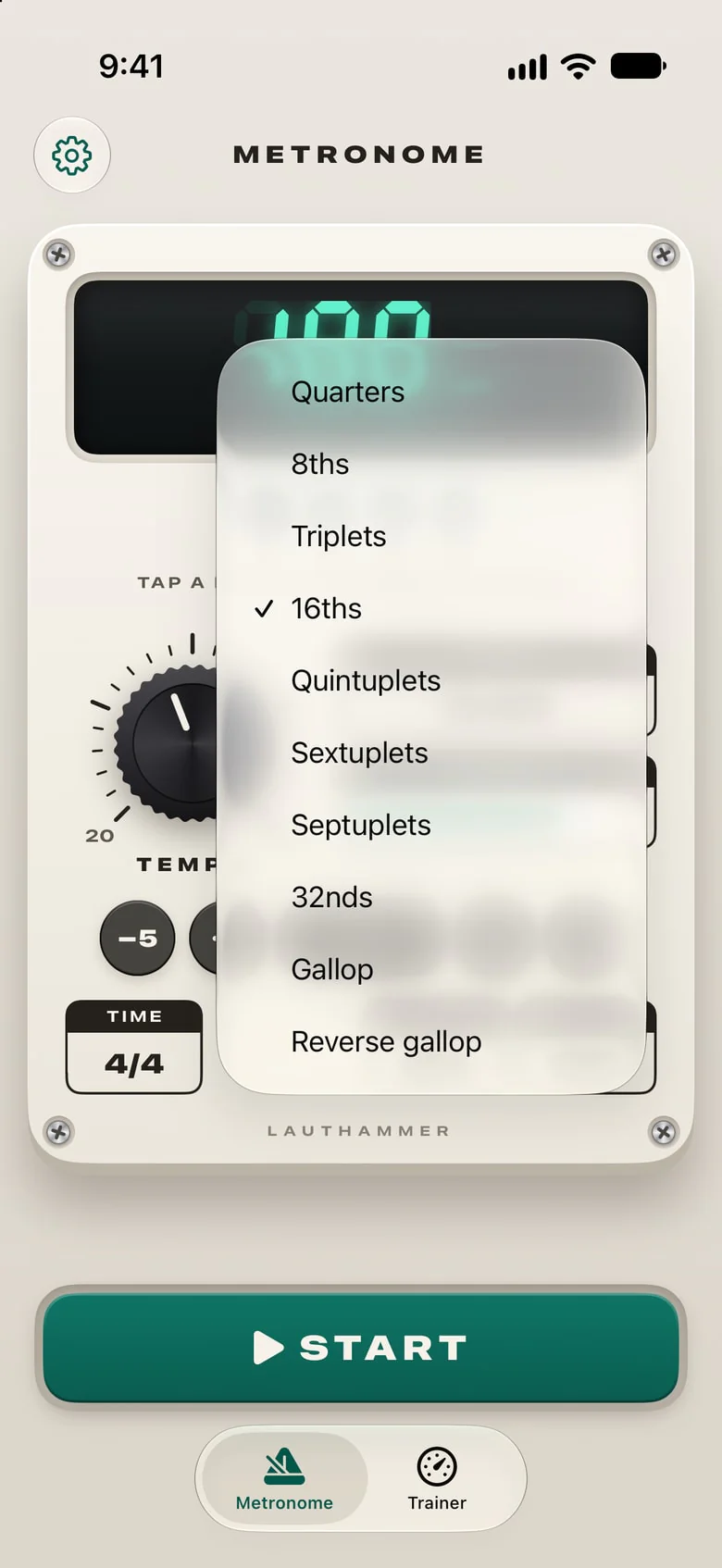
The menus. Time, Note, Accent, Count-in and Sound each open a menu, with the one in use ticked: here Note. Tap another to switch, or tap outside to leave it as it is.
The trainer
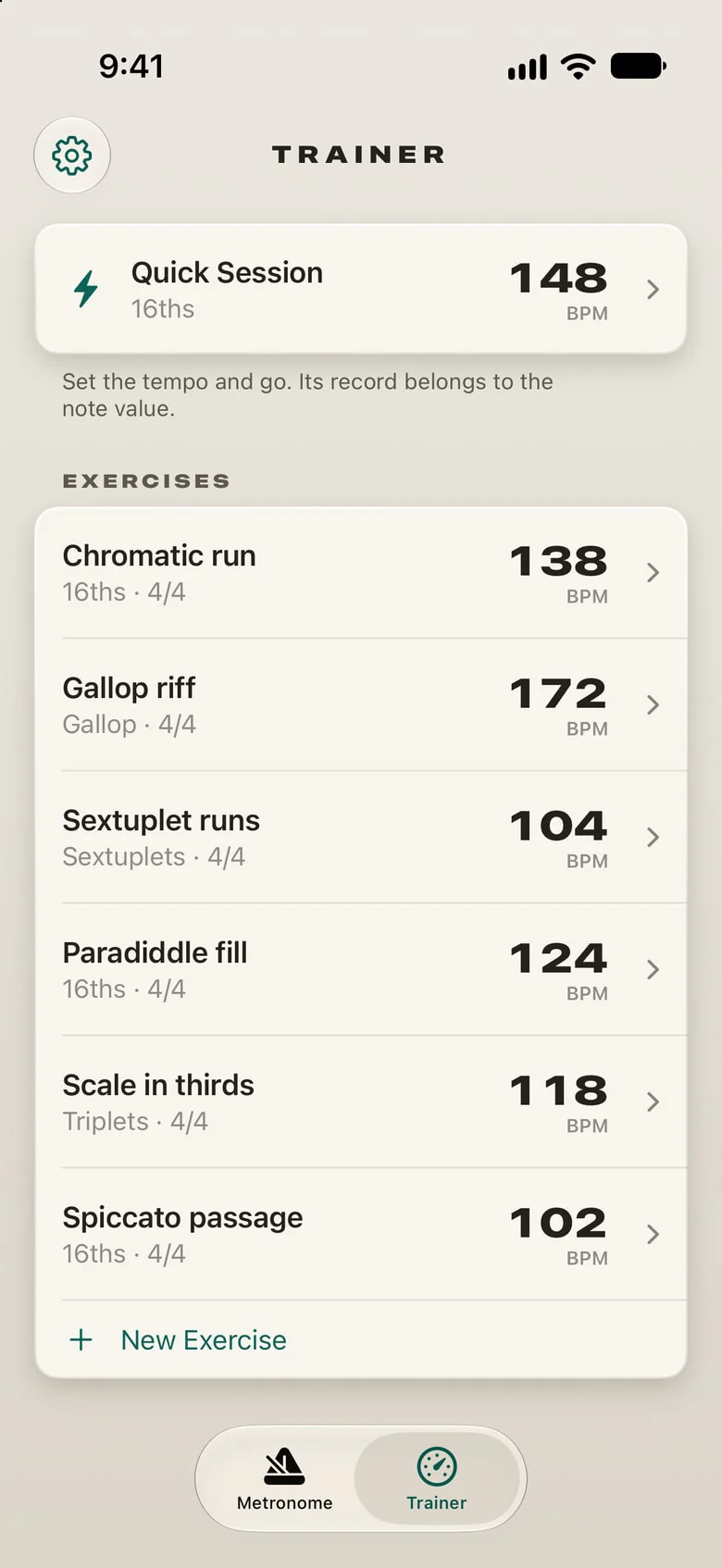
The Trainer tab is the speed trainer: a metronome that speeds up step by step until you tap Edge, and the last step you played clean becomes your record.
Quick Session. Set the tempo and go. Its record, on the right, belongs to the note value: 184 BPM in 8ths and in 16ths are different speeds.
Exercises. A riff, a fill or a passage under a name, with its own program, record and history. Each shows its note value, time signature and record.
New Exercise. Makes one: see Exercises.
Quick Session
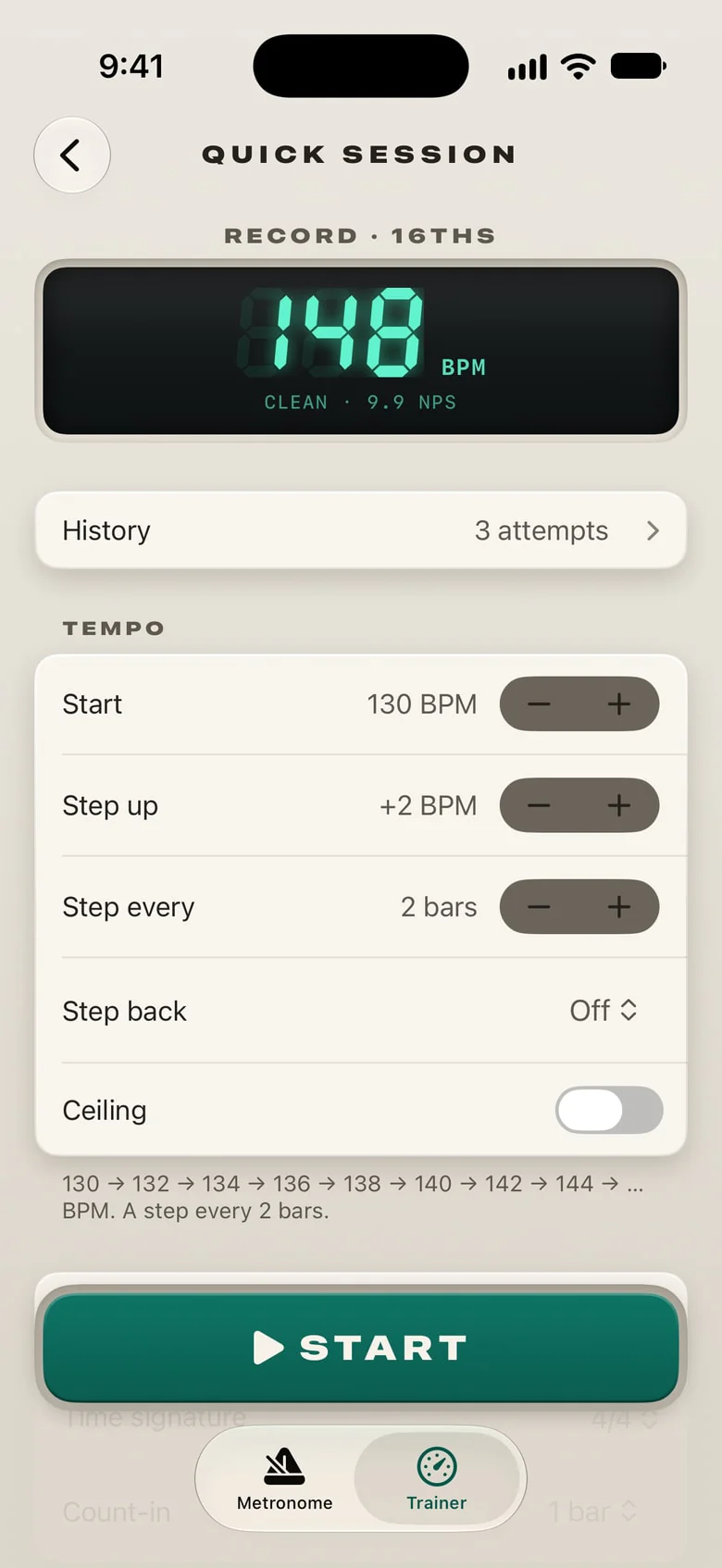
Tap Quick Session to set it up.
Under the tempo come the note value, the time signature and the count-in, then Save as Exercise…. It keeps these settings under a name, with a record and history of their own; your quick-session records stay where they are.
Record. The best clean tempo of your quick sessions in this note value, and its notes a second.
History. Every quick session in this note value, with the progress chart.
Tempo. How the tempo climbs: see The program.
Start. Starts the session.
The program
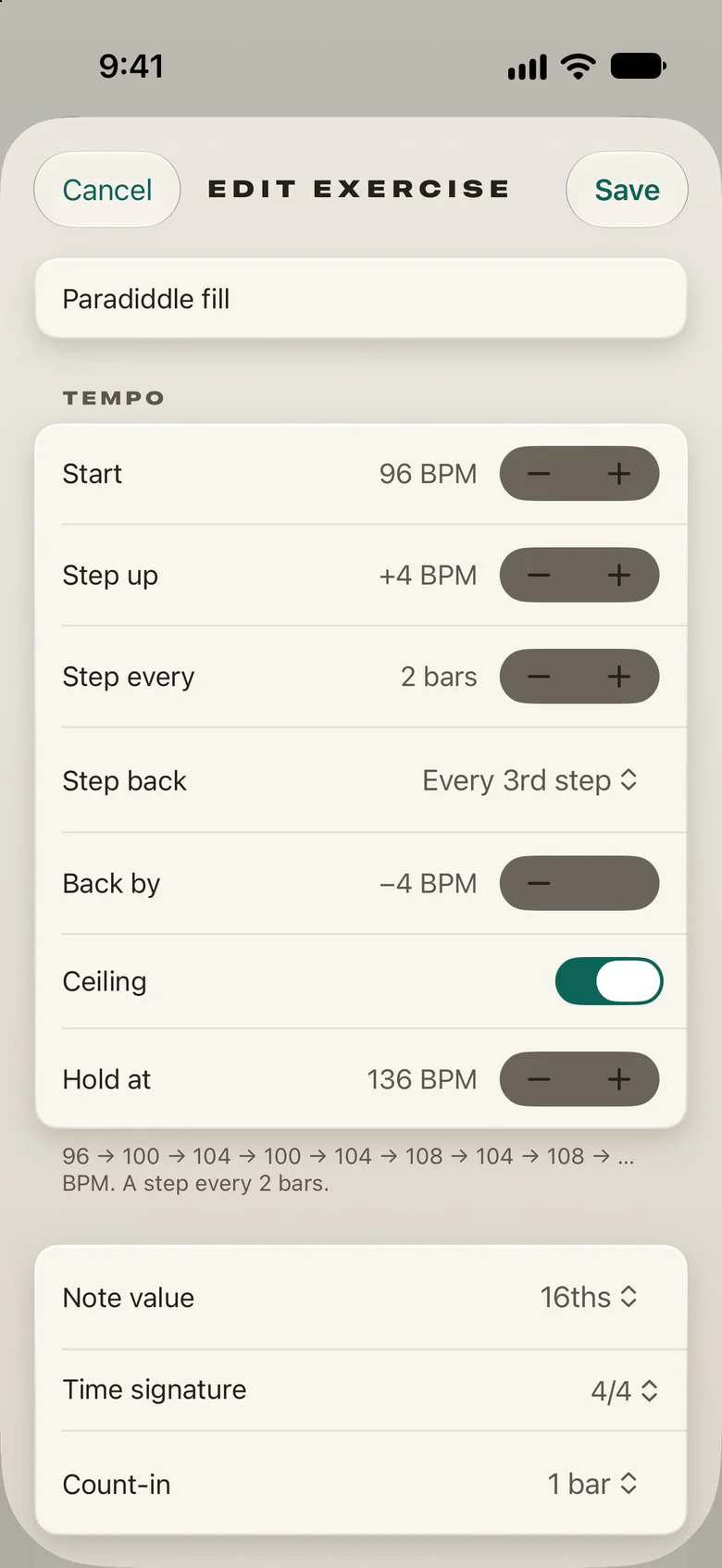
How the tempo climbs, the same for Quick Session and every exercise. This is an exercise's editor (Edit); Quick Session shows the same rows without the name and notes.
Under the count-in, an exercise has its notes: the passage, the fingering or sticking, what to watch.
Cancel and Save. Nothing changes until you tap Save.
Name. An exercise's name, such as Alternate picking run or Paradiddle fill.
Start. The first step's tempo, 20 to 400 BPM. Pick one you can play clean.
Step up. What each step adds: 1 to 20 BPM.
Step every. How many bars a step lasts, 1 to 16. The tempo changes on the first beat of a bar, so you never lose your place.
Step back. Off, or every 2nd to 5th step goes back instead of up: two steps forward, one back.
Back by. How far it goes back, up to a whole step.
Ceiling. Off, the tempo climbs until you tap Edge, or to 400 BPM.
Hold at. With a ceiling, the tempo climbs to here and stays.
The climb. The first tempos you'll hear, so you can check the program before you play.
Note value. What you play in each beat, as on the metronome.
Time signature. As on the metronome.
Count-in. Off, 1 bar or 2 bars at the first step's tempo.
A session
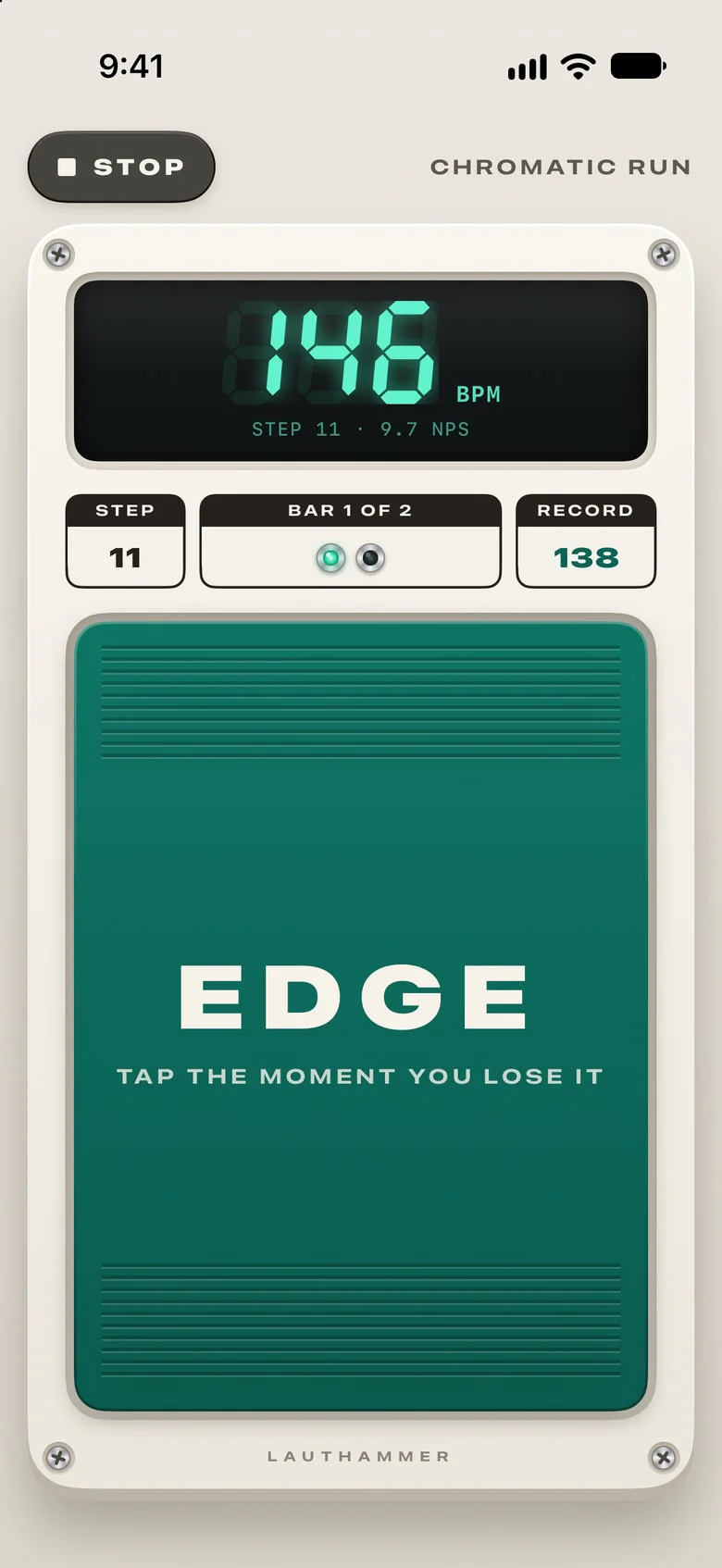
Start opens the session on the whole screen, and the screen stays on until it ends.
Stop. Ends the session without marking where you lost it. The steps you played through still count.
The tempo you hear. With the step and its notes a second. The exercise's name, or a quick session's note value, is at the top.
Step. The step you're on.
Bar. A light for each bar of the step, lit as you play it.
Record. The record to beat.
Edge. Tap it the moment you lose it. It counts when your finger lands and takes the step you were hearing then, your headphones' delay included. Any key of a Bluetooth keyboard or pedal is Edge too.
The result
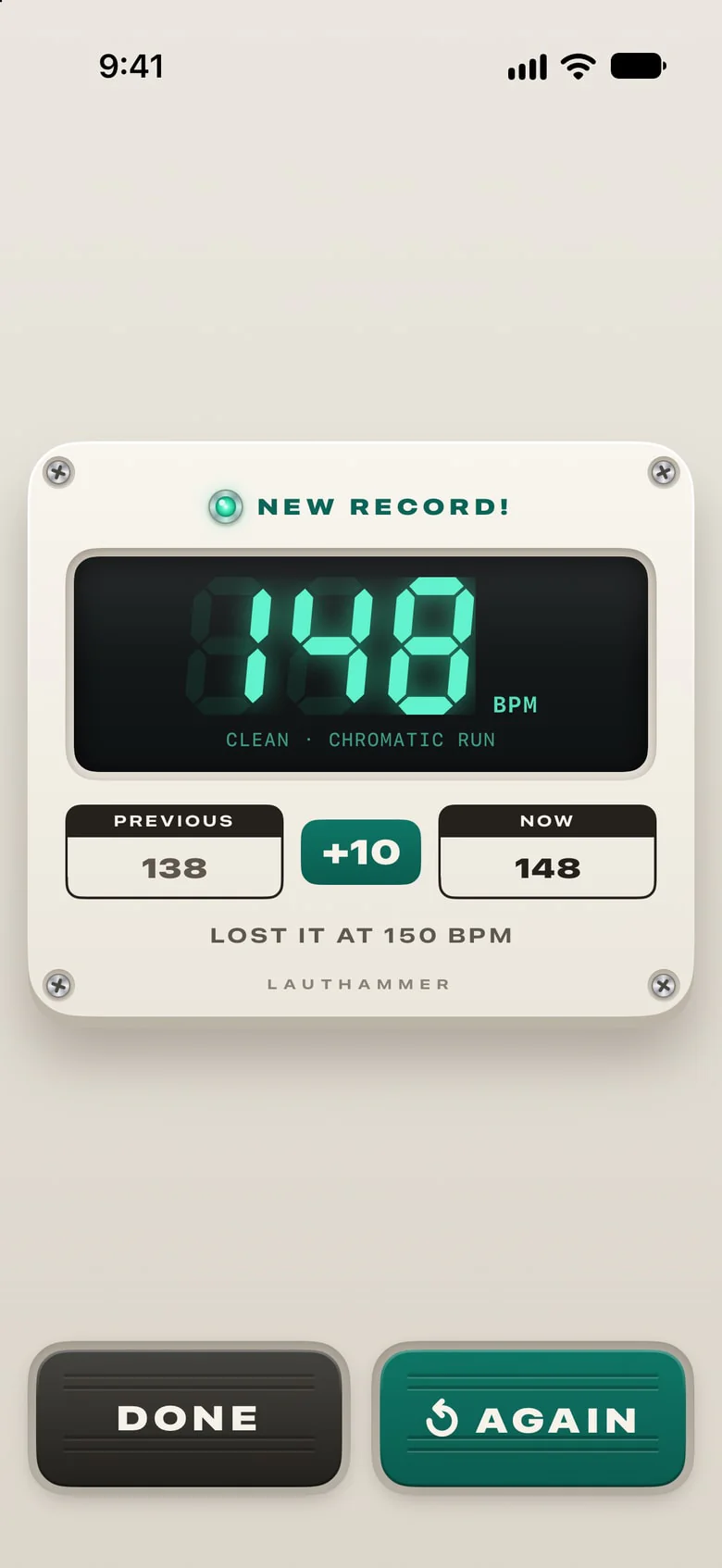
After a quick session there's Save as Exercise… too. It keeps the program, and the attempts since you tapped Start go with it, record and all.
The headline. New record!, Clean, or No clean step when you lost it on the first step.
Clean tempo. The fastest step you played all the way through. This is what counts.
Previous and now. Your record before and after, and what you gained.
Where it ended. Lost it at the tempo you tapped Edge on, or Stopped at the one you tapped Stop on. Lost on the first step, it suggests a slower start.
Done. Back to where you started.
Again. Once more, from the first step.
Exercises
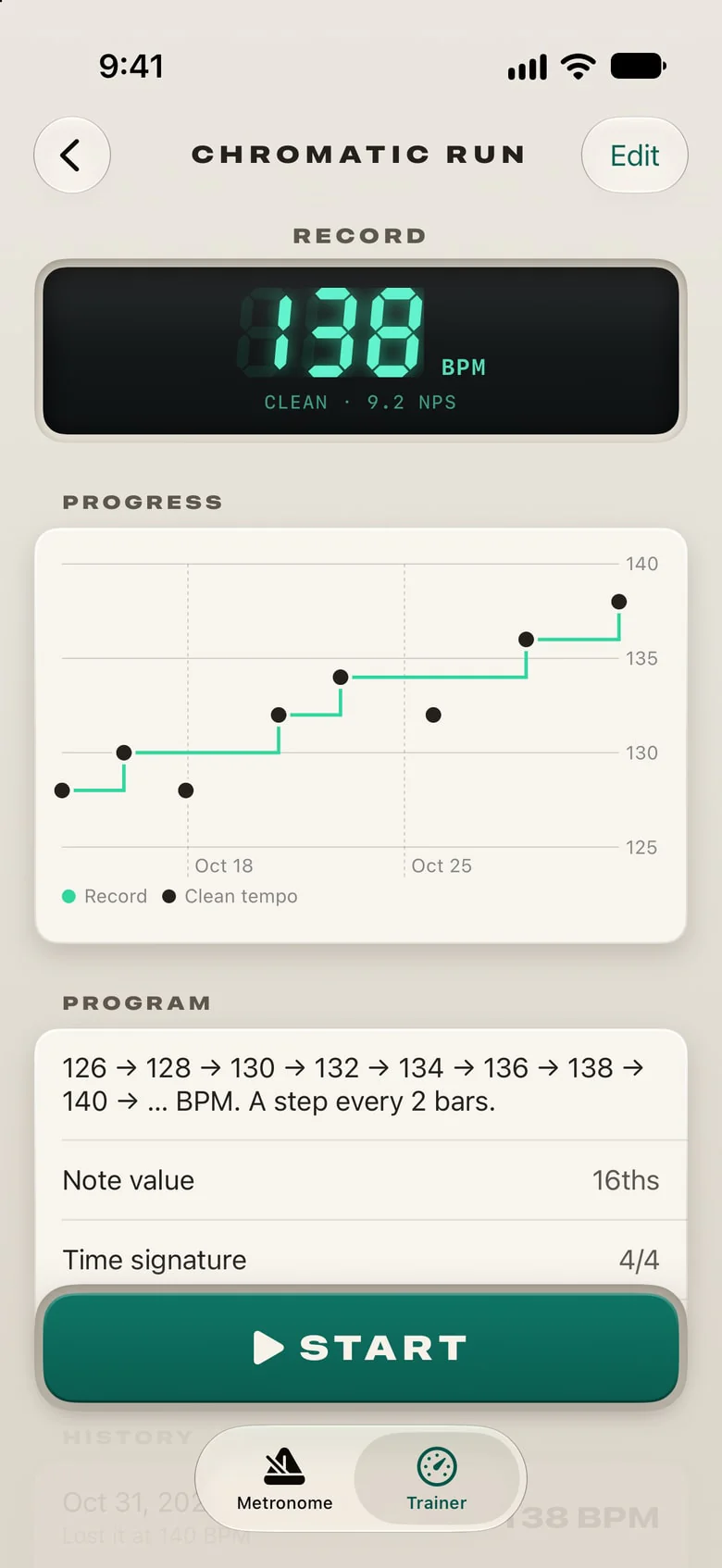
Tap an exercise in the Trainer tab to open it.
History, further down: every attempt, newest first, with a trophy where it set a record. Touch and hold an attempt to delete it; if it held the record, the next best becomes the record.
Delete Exercise, at the bottom, removes it with its attempts and record. In the Trainer tab, touch and hold an exercise to do the same.
Edit. The name, the program and the notes.
Record. The exercise's best clean tempo, and its notes a second.
Progress. The record as a line that steps up, every clean tempo as a point. Touch the chart to see an attempt. It appears once two attempts have a clean tempo.
Program. The climb, the note value, the time signature, the count-in and your notes.
Start. A session with this program.
Records
A record is the fastest step you played all the way through before you lost it. With steps back in the program, it's the highest step you played through.
Each exercise has its own record. Quick sessions have one for each note value, since 184 BPM in 8ths and in 16ths are different speeds.
Losing it on the first step leaves no clean tempo: try a slower start. Stop ends a session the same way as Edge, without marking where you lost it.
Every attempt goes into the history, and the record is the best of them.
Pro and the free trial
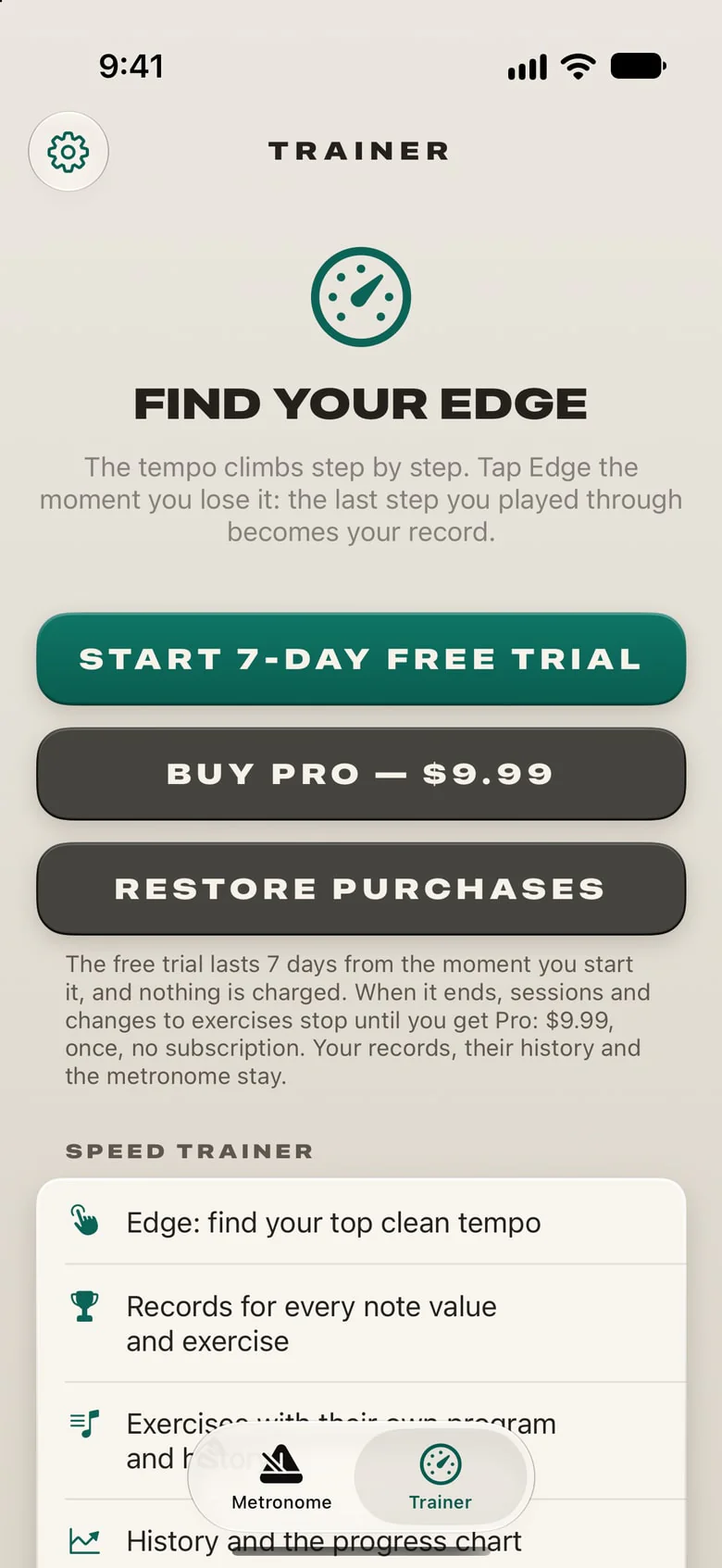
The metronome is free for good. The speed trainer is Pro: try it free for 7 days, then buy it once. Until you do, the Trainer tab shows this; later you'll find it in Settings.
Start 7-day free trial. The 7 days start when you tap it. Nothing is charged.
Buy Pro. One payment, no subscription: $9.99 plus tax in the US. The App Store shows the price for your country.
Restore purchases. Brings Pro back on a new iPhone with the same Apple Account. If it fails, tap Buy Pro: the App Store doesn't charge again for what you own.
The terms. When the trial ends, sessions and changes to exercises stop until you get Pro. Your records, their history and the metronome stay.
What Pro has. Edge, records for every note value and exercise, exercises with their own program and history, the progress chart, steps back and ceilings, and a Bluetooth pedal or keyboard as Edge.
Settings
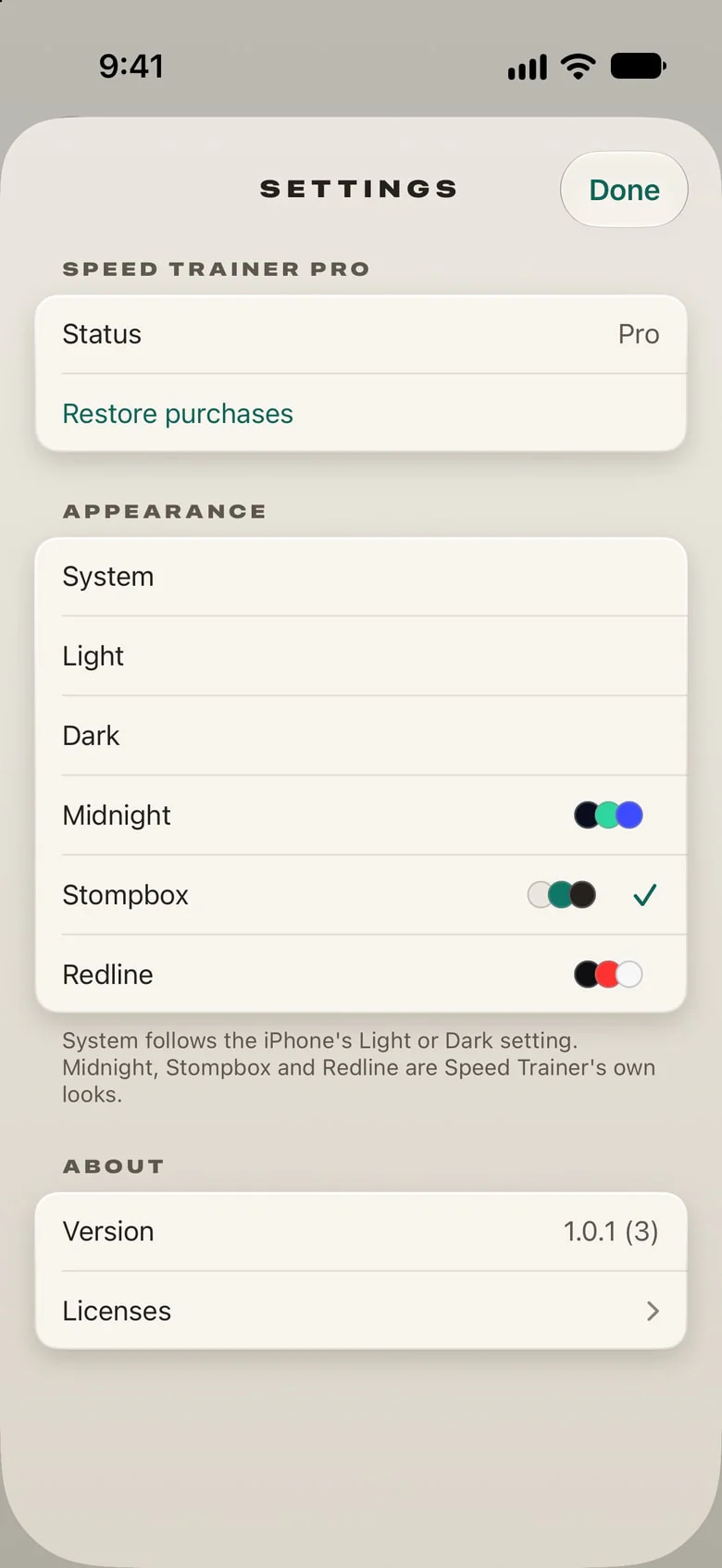
The gear, top left on both tabs, opens Settings.
Done. Closes Settings.
Status. Free, the days your trial has left, or Pro.
Restore purchases. As on the trial screen. Without Pro, Get Pro… is here too.
Appearance. System follows your iPhone's Light or Dark; Light and Dark keep one. Midnight (night blue and mint), Stompbox (a cream pedal) and Redline (a rev counter) are Speed Trainer's own looks, each drawing the same controls its way.
Version. Which version you have. Handy when you write to us.
Licenses. The fonts of the Midnight look and their license.
Headphones, pedals, the lock screen
Bluetooth headphones play everything 150–250 ms late. Speed Trainer allows for the delay iOS reports, so the lights flash and Edge counts by what you hear, AirPods too.
A pedal or a keyboard. During a session any key of a Bluetooth keyboard is Edge, and a page-turner pedal in its keyboard mode is one.
The lock screen. The click keeps going in the background and with the screen locked; start and stop it from the lock screen, Control Center or your headphones.
Calls and alarms. When another sound takes over, the click stops and doesn't come back on its own. A session ends there: the steps you played through count, and the result says the audio was interrupted.
Your data
Your exercises, attempts and records stay on your iPhone and in its backup. There's no account and nothing on our servers; the privacy policy has the details.
Still stuck?
Write to us: a person reads every message.